

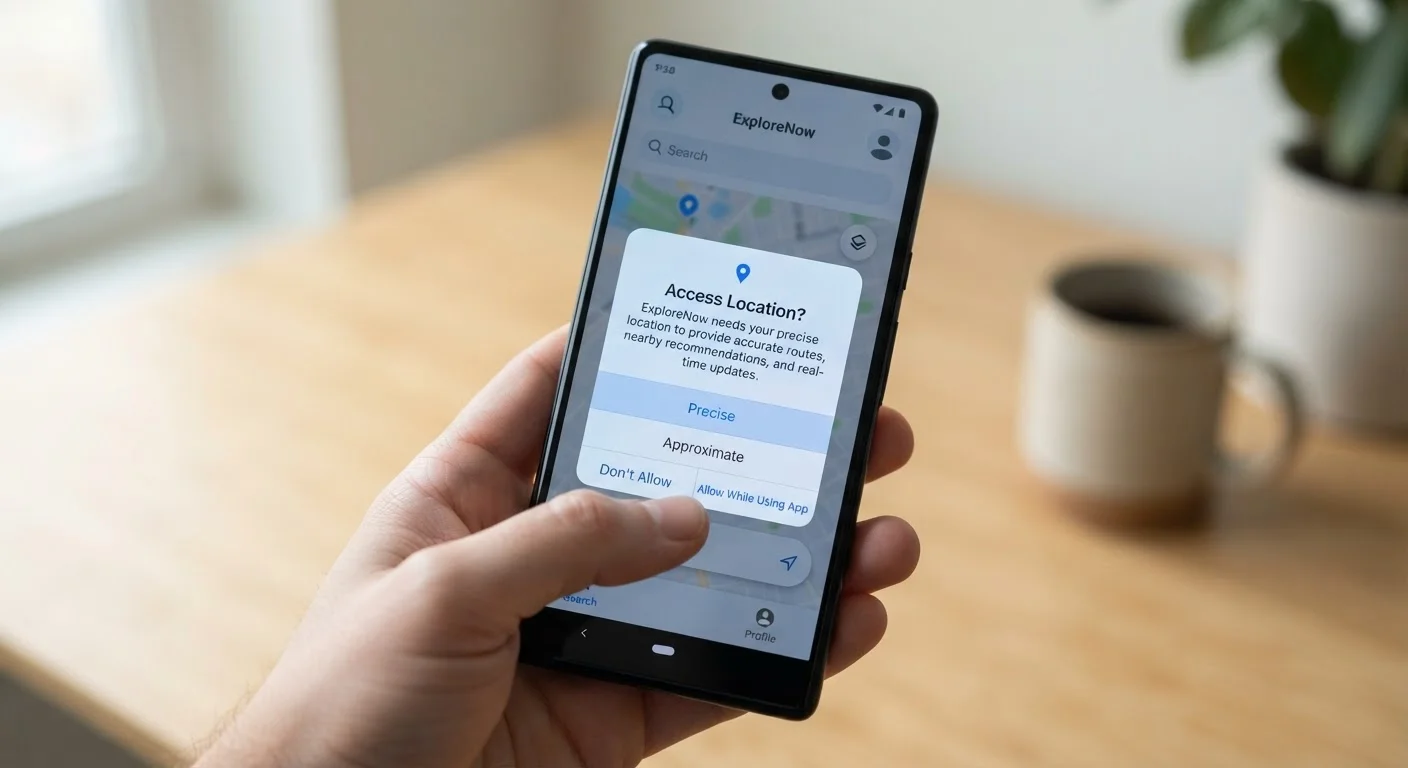
Why App Permissions Matter
Every time you install a new app, it may ask for access to parts of your phone - your camera, contacts, location, and more. These requests are called permissions, and granting them gives the app real access to your personal data and device hardware. Most people tap "Allow" without a second thought, but each permission is a meaningful decision.
Both Android and iOS require apps to request sensitive permissions explicitly, and both platforms let you review and revoke those permissions at any time through your device's settings. Understanding what each permission actually does is the first step to making choices you feel confident about.
For a broader look at your overall digital footprint, see our personal privacy audit checklist to review permissions alongside other privacy considerations.
| Platforms with permission controls | iOS and Android |
| Location options available | Always, While Using, Never, or Approximate (iOS 14+ and Android 12+) |
| Where to review all permissions (iPhone) | Settings → Privacy & Security |
| Where to review all permissions (Android) | Settings → Privacy → Permission Manager |
| Can permissions be changed after install? | Yes - at any time in device settings |
| Most sensitive permissions | Location, Microphone, Camera, Contacts, Health Data |
Common Permissions Explained
Below is a plain-language breakdown of the permissions you'll encounter most often and what granting them actually allows.
Location
Allows an app to determine your physical position using GPS, Wi-Fi, or cellular signals. "Precise" location pinpoints you to within meters; "approximate" location gives a general neighborhood radius. Maps and weather apps need it; most others don't.
Contacts
Grants access to the names, phone numbers, and email addresses stored in your phone's address book. Messaging and calling apps use this to find connections, but the data can also be uploaded to third-party servers.
Microphone
Enables an app to record audio through your device's microphone. Voice assistants and video calling apps require it; granting it to a game or retail app with no voice feature is generally unnecessary.
Camera
Lets an app activate your device's camera to capture photos or video. Required for scanning QR codes or video calls, but unrelated apps (such as a calculator) have no legitimate need for this access.
Storage / Photos
Allows an app to read or write files on your device, including your photo library. On newer OS versions, apps can request access to specific photos rather than your entire library - prefer this limited option when it's offered.
Bluetooth
Permits an app to scan for and connect to nearby Bluetooth devices. Used legitimately for headphones and smart-home apps, but Bluetooth scanning can also be used to track your physical location indirectly.
Notifications
Lets an app send alerts to your lock screen and notification tray. While not a data-collection permission, excessive notifications can be used as an engagement tactic; you can grant and later restrict this without affecting core app function.
Body Sensors / Health Data
Grants access to data from your device's accelerometer, heart-rate sensor, or connected health platform. Fitness apps have clear uses for this; unrelated apps requesting health data warrant extra scrutiny.
When Denying Makes Sense
Denying a permission doesn't always break the app. Many apps function perfectly without every permission they request. Ask yourself: does this feature require this access to work, or is the app collecting data beyond what its core function needs? A flashlight app requesting your contacts, for example, has no obvious functional reason for that access.
If an app refuses to function after you deny a non-essential permission, that refusal itself is useful information about how the developer values user data. You can also choose "Allow only while using the app" for location or microphone - a middle-ground option available on both major platforms that limits exposure without fully blocking the feature.
Video calling apps in particular often request camera, microphone, and contacts simultaneously. Our comparison of video calling app privacy settings walks through what each platform does with that access.
How to Review and Revoke Permissions
On iPhone, go to Settings → Privacy & Security to see a list of permission categories. Tap any category to see every app that has requested it, and toggle access on or off per app.
On Android, go to Settings → Privacy → Permission Manager for the same category-level view. You can also open any app's individual settings page and tap Permissions to manage them from there.
It's worth auditing permissions periodically - especially for apps you haven't opened in months. Background access to location or microphone can contribute to battery and data drain. Our article on apps quietly draining your battery and data explains how to spot that pattern.
Permissions Reset After App Updates
Some app updates can request new permissions that weren't part of the original install. On Android, major permission additions require you to grant them explicitly; on iOS, the app will prompt you again when it first needs the new access. It's good practice to check permissions again after a significant app update, especially if the app's functionality has changed.
Permissions don't exist in isolation. Apps that sync across devices may also transmit permission-derived data to cloud services. Understanding that chain - covered in our look at cross-device app syncing trade-offs - helps you see the full picture of what you're sharing.
The content on this site is provided for informational purposes only and should not be considered a substitute for professional advice. While we strive to provide accurate and up-to-date information, we make no guarantees regarding its completeness or accuracy. Always consult a qualified professional for advice specific to your circumstances before making any decisions.