

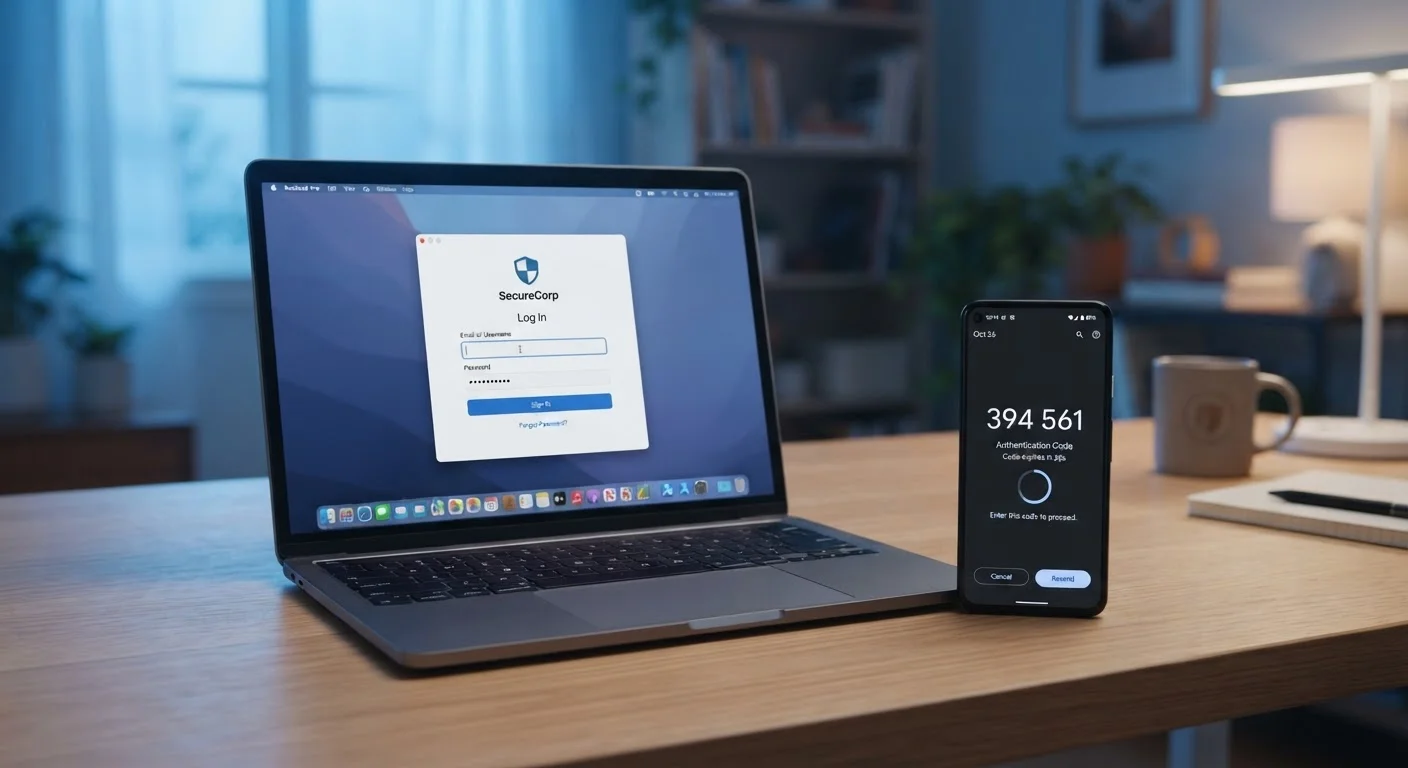
What Two-Factor Authentication Actually Does
A password is a single point of failure. If someone obtains yours - through a data breach, phishing email, or credential-stuffing attack - they walk straight into your account. Two-factor authentication (2FA) breaks that model by requiring a second, separate proof of identity at login time.
The underlying principle is three categories of evidence: something you know (your password), something you have (a phone or hardware key), and something you are (a fingerprint or face scan). 2FA combines at least two of these. An attacker who steals your password still lacks the second factor, which is typically on a physical device they don't control.
Research consistently shows that enabling 2FA stops the overwhelming majority of automated account takeover attacks. It is arguably the highest-return security action an everyday user can take - more impactful, for most people, than memorizing complex passwords alone. To understand how stolen credentials are exploited before they even reach a login page, see our comprehensive guide to online privacy threats.
Start With Your Email Account
Your email inbox is the master key to nearly every other account you own - password reset links all land there. If you only enable 2FA on one account today, make it email. Everything else can cascade from that single point of protection.
Choosing the Right Type of 2FA
Not all second factors are equally strong. Here is how the main options compare:
- SMS text codes: A one-time code is sent to your phone number. Convenient, widely supported, but vulnerable to SIM-swapping - where an attacker convinces your carrier to transfer your number to their device. Acceptable for low-risk accounts; not recommended for email, banking, or social media.
- Authenticator apps (such as those generating time-based one-time passwords, or TOTP): An app installed on your phone generates a fresh six-digit code every 30 seconds. Codes never travel over the phone network, so SIM-swapping doesn't work against them. This is the recommended baseline for most people.
- Hardware security keys: A small USB or NFC device you physically tap to authenticate. Cryptographically verifies the site is legitimate before responding, making phishing attacks nearly impossible. The strongest option available to consumers.
- Push notifications: An app prompts you to approve or deny a login attempt. Convenient but susceptible to MFA fatigue attacks, where attackers spam approval requests hoping you tap "Allow" by mistake.
For most accounts, an authenticator app delivers the right balance of security and convenience. Pairing strong 2FA with a password manager creates a genuinely robust defense for your digital accounts.
SMS Codes Are Better Than Nothing - But Not by Much
If SMS is the only 2FA option a platform offers, enable it. It still blocks the vast majority of automated attacks. However, SIM-swapping fraud - where criminals impersonate you to your mobile carrier - can defeat SMS-based 2FA. For any account with financial or sensitive personal data, push for authenticator app support or use a hardware key if available.
How to Enable 2FA on Your Accounts
The exact steps vary by platform, but the process follows a consistent pattern across virtually every major service. Work through these steps for your most important accounts first: email, banking, and any account that stores payment information.
What you will need
Download an authenticator app
Install a TOTP-based authenticator app from your device's official app store. These apps work offline and generate codes locally - your codes never travel over the cellular network. Most platforms will accept any standard TOTP app.
Open your account's security settings
Log in to the account you want to protect and navigate to its security or privacy settings. Look for a section labeled Two-Factor Authentication, Two-Step Verification, or Login Security. The exact label varies by platform.
Select your preferred 2FA method
Choose Authenticator App from the available options whenever possible. If the platform only offers SMS, that is still better than no 2FA - but plan to upgrade when authenticator support becomes available.
Scan the QR code with your authenticator app
The platform will display a QR code on screen. Open your authenticator app, tap the option to add a new account (often a + icon), and point your phone camera at the QR code. The app will register the account and begin generating six-digit codes immediately.
Enter the code to confirm setup
Type the current six-digit code shown in your authenticator app into the verification field on the platform's setup page. This confirms that your app is correctly synced. The code refreshes every 30 seconds, so enter it promptly.
Save your backup recovery codes
After confirming setup, the platform will typically display a set of single-use backup codes. Save these immediately - screenshot them, print them, or write them down and store them somewhere safe offline. These codes let you regain account access if you lose your phone.
Common Pitfalls and How to Avoid Them
Even with 2FA active, a few mistakes can undermine your protection:
- Losing access to your second factor: If you get a new phone without migrating your authenticator app, you can be locked out. Always save the backup codes each platform provides when you set up 2FA - store them offline or in a secure note.
- Approving unexpected push prompts: If you receive a login approval request you didn't initiate, deny it immediately and change your password. Someone has your credentials and is attempting access.
- Relying on SMS for high-value accounts: If you have SMS-based 2FA on your email account, upgrade to an authenticator app. Email access often lets an attacker reset every other account password you own.
Understanding how accounts get compromised in the first place also helps. Many breaches begin with tracking and profiling that happens outside of logged-in sessions - our article on how websites track you even when you're not logged in covers those mechanisms in detail.
For a broader look at security misconceptions that leave people exposed, see our piece on internet privacy myths.
The content on this site is provided for informational purposes only and should not be considered a substitute for professional advice. While we strive to provide accurate and up-to-date information, we make no guarantees regarding its completeness or accuracy. Always consult a qualified professional for advice specific to your circumstances before making any decisions.