

Option A
Hard Disk Drive (HDD)
The time-tested, high-capacity workhorse.
Best for: Users who need large amounts of storage at a lower cost and don't mind slower load times.
Option B
Solid-State Drive (SSD)
The fast, durable modern standard.
Best for: Anyone who wants a snappier, more responsive laptop and doesn't mind paying a bit more per gigabyte.
How Each Drive Actually Stores Your Files
When you save a document, photo, or app, it has to live somewhere permanent - somewhere that holds the data even after you shut down. That's the job of your laptop's storage drive. The two main types you'll see listed on a spec sheet are the hard disk drive (HDD) and the solid-state drive (SSD), and they accomplish that same goal in fundamentally different ways.
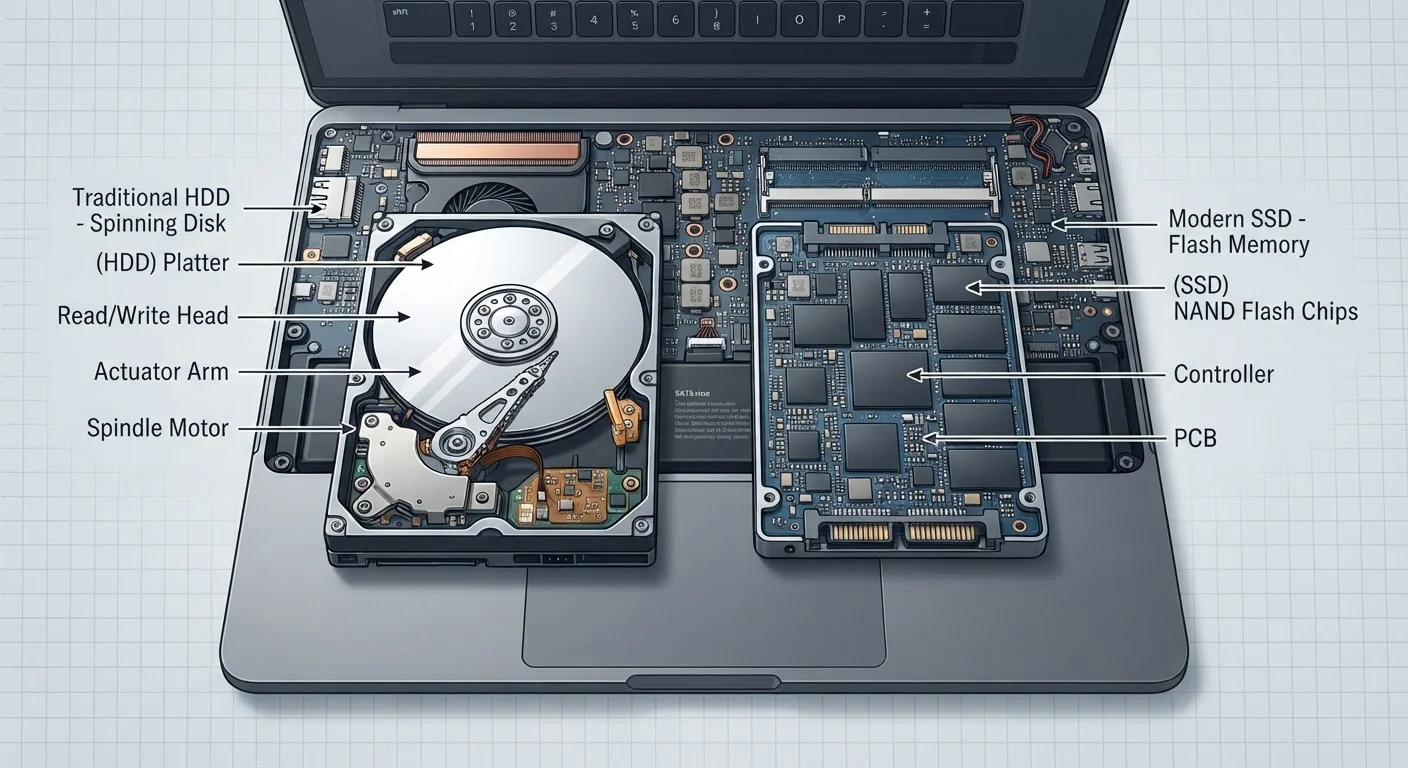
An HDD stores data on one or more circular magnetic platters - thin, rigid disks that spin at speeds typically between 5,400 and 7,200 rotations per minute. A mechanical read/write head moves across the spinning surface to find and record data, much like a record player needle tracking a vinyl groove. Because this process is physical, it takes a measurable amount of time: the drive has to wait for the right section of the platter to rotate into position.
An SSD uses flash memory - the same basic technology in a USB thumb drive, scaled up and optimized for speed. There are no spinning parts and no moving heads. Instead, data is stored as electrical charges in memory cells and retrieved almost instantly through electronic signals. When you open an app or boot up Windows, the SSD can fetch the required data in milliseconds rather than the tens or hundreds of milliseconds an HDD might need.
For a deeper look at how related terms like RAM and cache fit into the picture, see our plain-language tech glossary.
| Criterion | HDD | SSD |
|---|---|---|
| Storage technology | Spinning magnetic platters | Flash memory chips |
| Typical read speed | 80-160 MB/s | 400-7,000 MB/s |
| Moving parts | Yes (platters & read head) | None |
| Shock resistance | Vulnerable to drops | Highly resistant |
| Noise | Audible spinning/clicking | Silent |
| Cost per terabyte | Lower | Higher |
| Common in modern laptops | Budget and older models | Most current models |
Speed, Durability, and Capacity: What the Differences Mean for You
The mechanical nature of an HDD creates three real-world tradeoffs beyond speed. First, durability: a bump or drop while the drive is spinning can cause the read head to scratch the platter, potentially destroying data. SSDs, having no moving parts, handle physical shocks far better - a meaningful advantage if you carry your laptop in a bag daily.
Second, noise and heat: HDDs produce audible vibration and generate more heat from constant mechanical motion. SSDs run silently and cooler, which can contribute to a laptop's overall battery efficiency.
Third, capacity per dollar: HDDs still win here. A 2-terabyte (TB) external HDD is considerably cheaper than a 2 TB SSD. That's why HDDs remain common in external desktop-style backup drives, even as internal laptop storage has shifted heavily toward SSDs.
~10×
Speed advantage of SSDs over HDDs
Typical SATA SSDs read data at 500 MB/s versus roughly 80-160 MB/s for standard laptop HDDs, according to published drive benchmarks.
~30 sec
Typical HDD laptop boot time
Consumer testing consistently shows HDD-equipped laptops taking 30-60 seconds to reach the desktop, compared to under 15 seconds for SSD systems.
It's also worth knowing that SSDs have a finite number of write cycles - each memory cell can only be rewritten so many times before it degrades. In practice, for typical home users, a modern SSD will outlast the useful life of the laptop itself. But it's a consideration worth understanding for specialized, write-intensive workloads.
Local storage - HDD or SSD - is also distinct from cloud storage, which keeps your files on remote servers rather than on the device. For a clear explanation of how those services work, see Cloud Storage Explained.
NVMe vs. SATA SSDs: A Quick Note
Not all SSDs are equally fast. Older SSDs connect via a standard called SATA and top out around 550 MB/s. Newer SSDs use an interface called NVMe (Non-Volatile Memory Express), which can reach speeds several times higher. When reviewing laptop specs, look for "NVMe" or "PCIe" to identify the faster type. For everyday tasks like web browsing and document editing, either SSD type is a dramatic improvement over an HDD.
The content on this site is provided for informational purposes only and should not be considered a substitute for professional advice. While we strive to provide accurate and up-to-date information, we make no guarantees regarding its completeness or accuracy. Always consult a qualified professional for advice specific to your circumstances before making any decisions.